Your subdomain
Ten recruiting mailboxes on a subdomain of your company domain, connected once your DNS records are live.
Send from addresses such as alex@talent.northstar.example. You pick the recruiter name
and the subdomain label. We suggest editable addresses, give you the DNS records, check them,
then create and connect the mailboxes.
The subdomain is separate from your main domain's email. Your existing email and website keep working as before.
Before you start
- You are an organization admin with an active Stripe subscription.
- Your company profile has a website. The subdomain sits under it.
- You can edit DNS for your company domain, or know who can. Adding the records is the one step we cannot do for you.
1. Identity
Select Add mailboxes, choose Your subdomain, then Continue.
Enter the recruiter's name or select Generate a name. Set the Subdomain label.
talent is the default and gives talent.northstar.example. Use jobs, careers or any
single word not already in use.
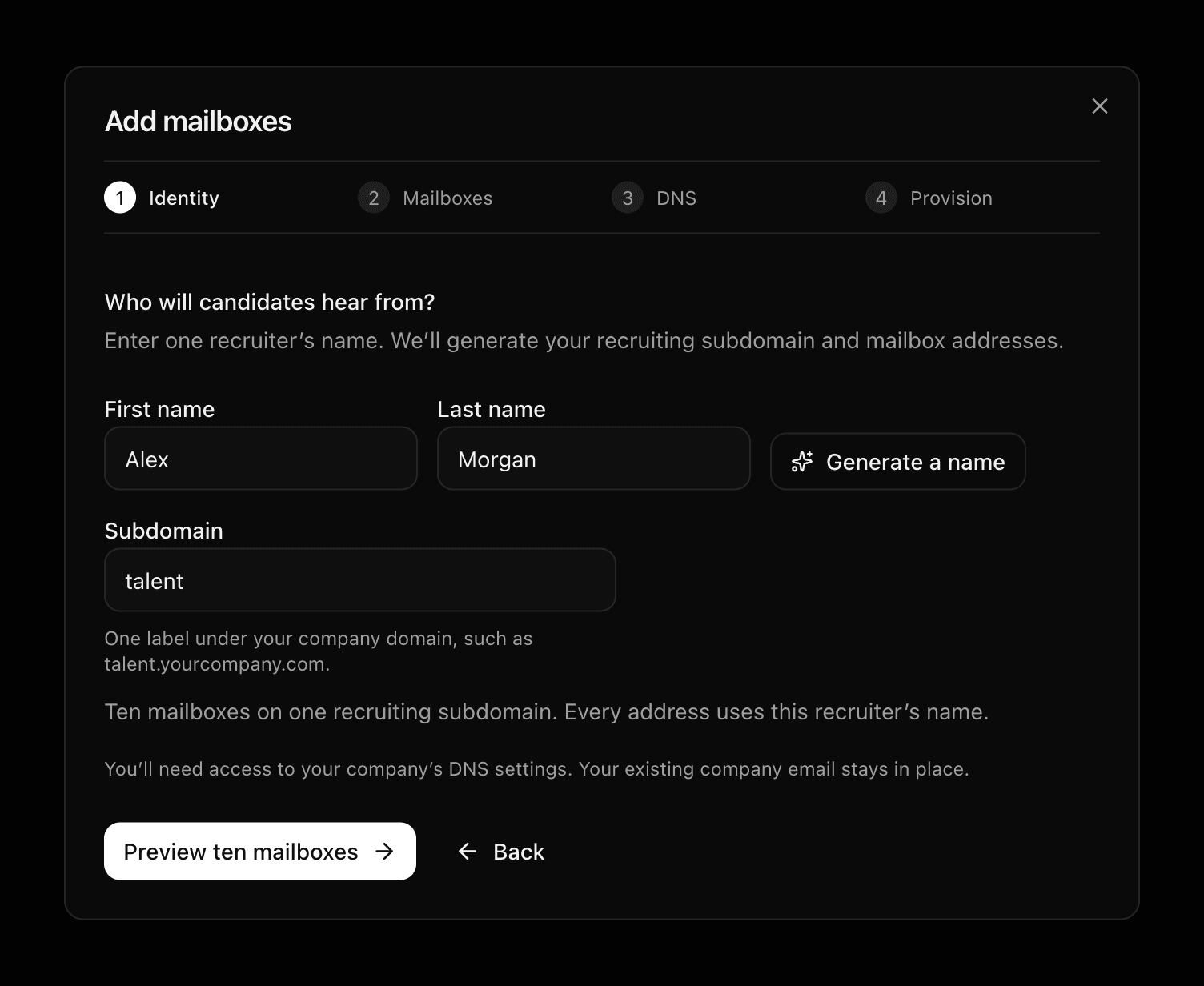
Select Preview ten mailboxes.
2. Mailboxes
The review card shows your recruiter’s name and subdomain above the ten addresses.
Each row has an editable handle on the left
and the fixed subdomain after @. For example, change alex to alex.recruiting
to use alex.recruiting@talent.northstar.example.
- Edit each handle independently. All ten mailboxes keep the same recruiter display name.
- Use letters, numbers, dots, hyphens or underscores. Leading/trailing spaces are removed and uppercase letters become lowercase when you leave the field.
- Every address on this subdomain must be unique. A red message identifies an invalid or duplicate address; correct it before continuing.
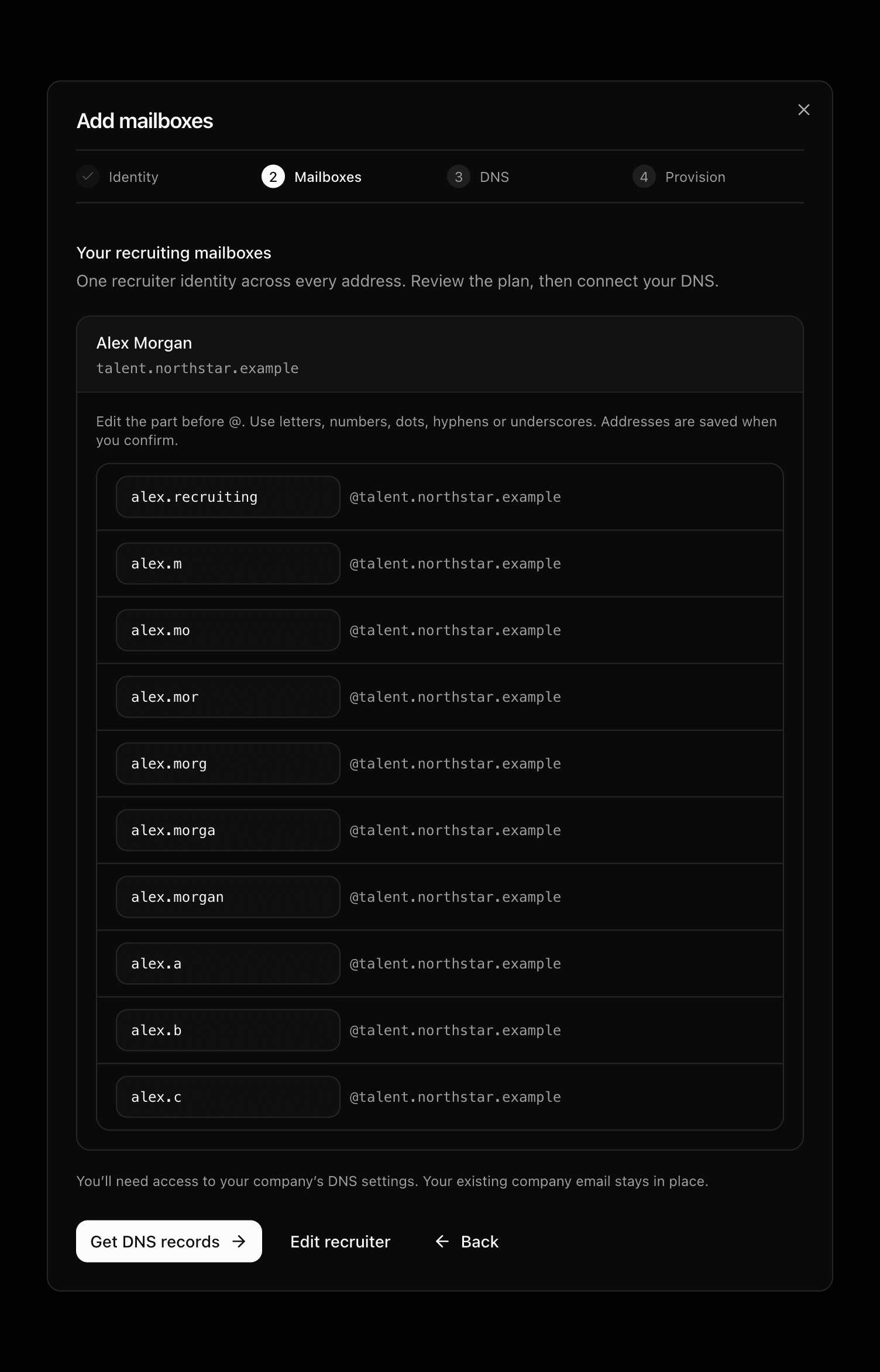
Select Get DNS records to save the reviewed addresses and continue. Edit recruiter returns to the name step; a new preview replaces your handle edits with fresh suggestions. You can edit handles only before confirming, before provisioning starts. This step does not rename existing mailboxes.
The dialog closes and a card appears. It shows Pending domain verification while we set up the subdomain with our mail provider, then Add DNS records when the records are ready.
3. DNS
The card lists every record in four groups: verification, sending, receiving and protection. Add all of them at your DNS provider. Names are shown the way most providers expect them, relative to your domain. Click any name or value to copy it in full.
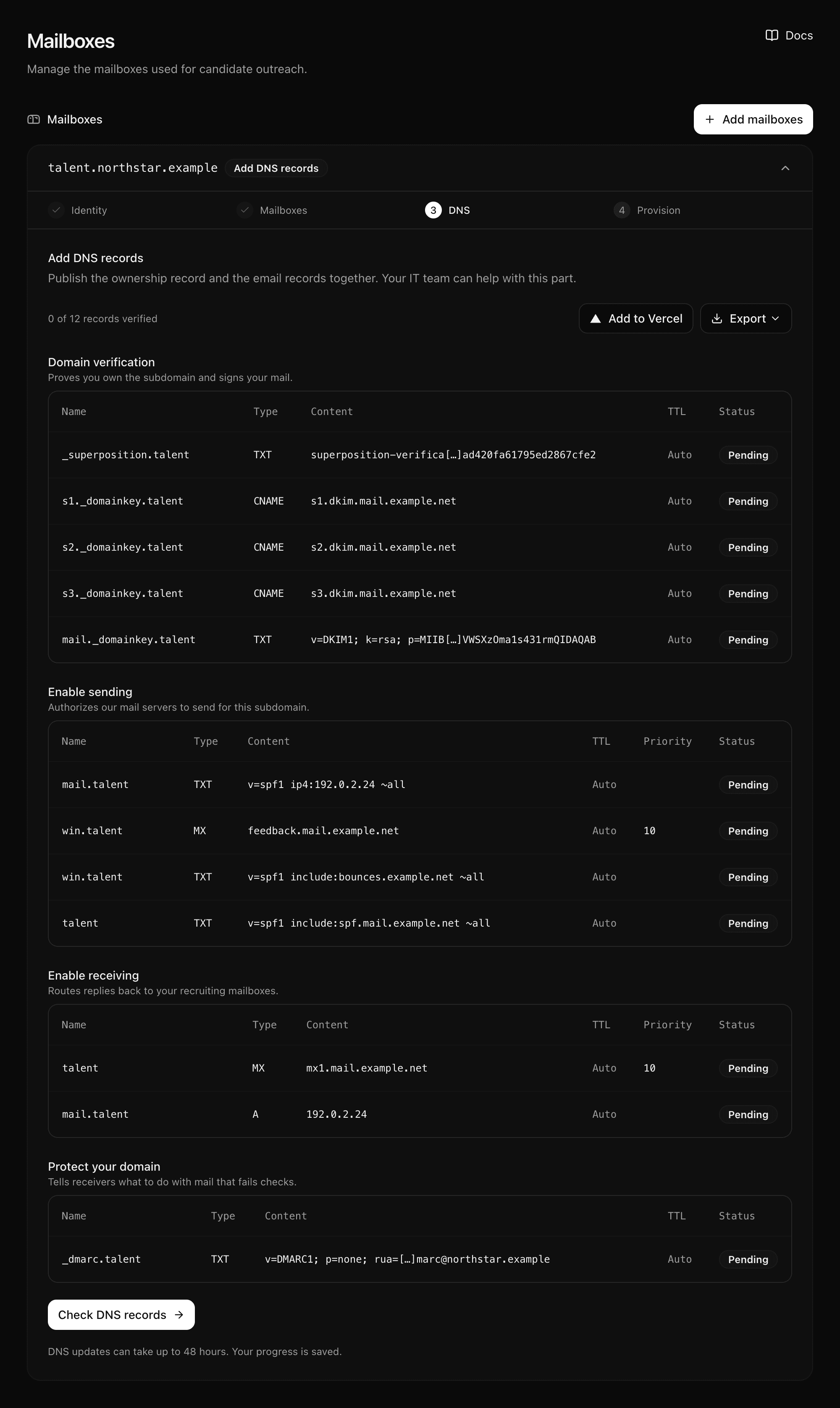
Ways to hand the records over:
- Export → Copy instructions for a colleague who manages DNS.
- Export → Copy as prompt, or Open in Cursor / Claude / ChatGPT, to have an assistant guide you through your provider.
- Export → Download zone file for Vercel if your domain is on Vercel DNS. Then run
vercel dns import northstar.example <file>to add everything at once. - Export → CSV for any other importer.
We check the records about every ten minutes. Select Check DNS records to check now. Each record turns Verified when it is live. DNS changes can take up to 48 hours, so feel free to leave the page.
See DNS records for what each record does and the usual mistakes.
4. Provision
When every record is verified, the card moves to Creating mailboxes, then Connecting mailboxes. Nothing to do here. Select Check progress or come back later.
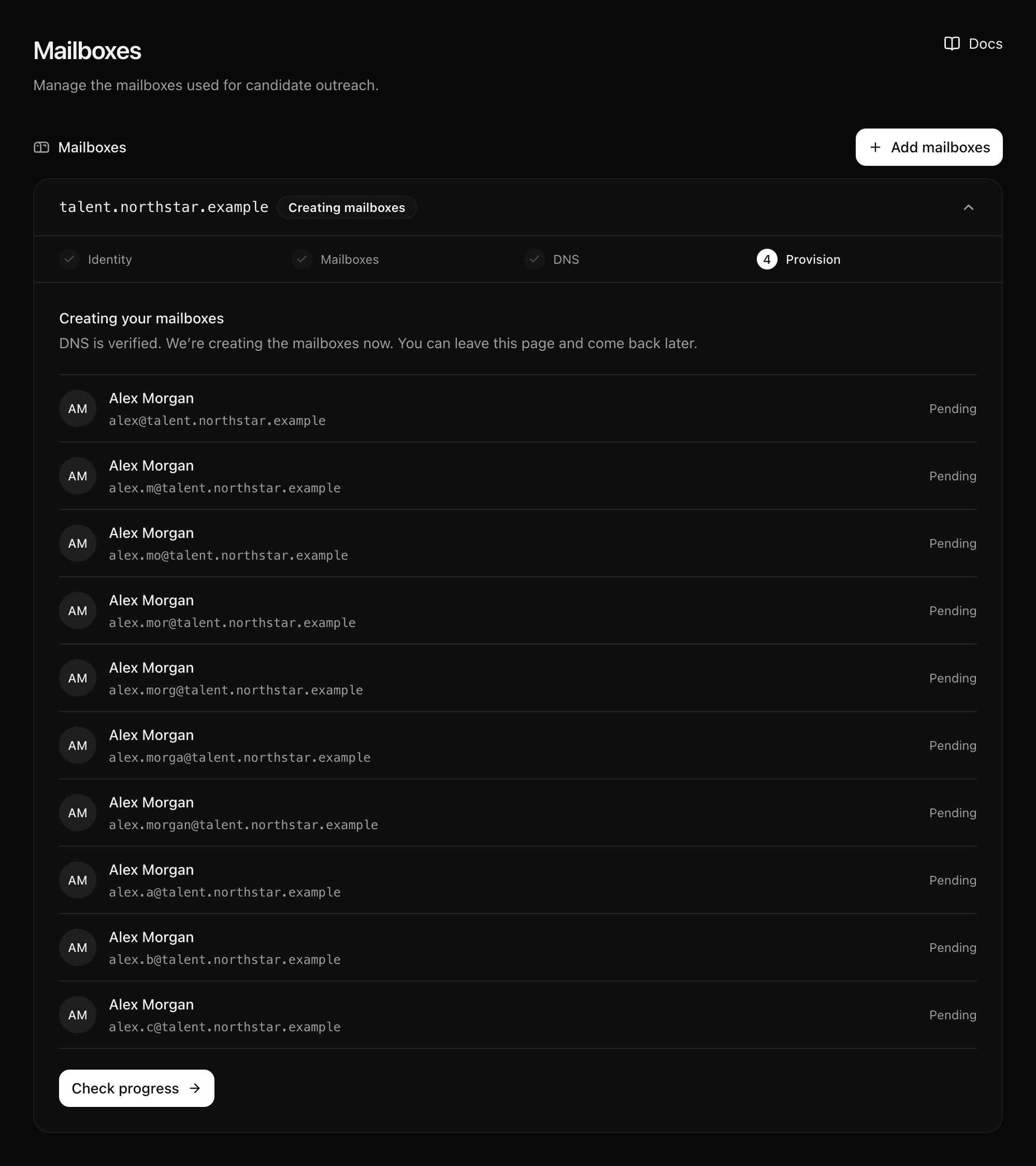
Ready
Ready means all ten mailboxes send and receive. They appear in the mailbox list at the bottom of the page. If you started from a job, they are linked to it.
Need ten more? Add another setup with a different label.
If something is stuck
| The card shows | Do this |
|---|---|
| Add DNS records with rows still pending | Compare each pending row with your provider. Usual causes: the domain added twice in the name, or no MX priority. |
| Pending domain verification for several minutes | Select Check DNS records. |
| Needs attention | Use the card's Email support link. Keep the card; the setup resumes where it stopped. |
Every state is listed in Setup status.
Last updated on