Connect your Gmail
Use a Google account you already own as a recruiting mailbox.
Connect a Gmail or Google Workspace mailbox in a minute. You sign in with Google. No password is shared and there are no DNS changes.
Before you start
- You are an organization admin with an active Stripe subscription.
- You can sign in to the Google account candidates should hear from.
Connect
Select Add mailboxes, choose Connect your Gmail, then Continue and Connect Gmail.
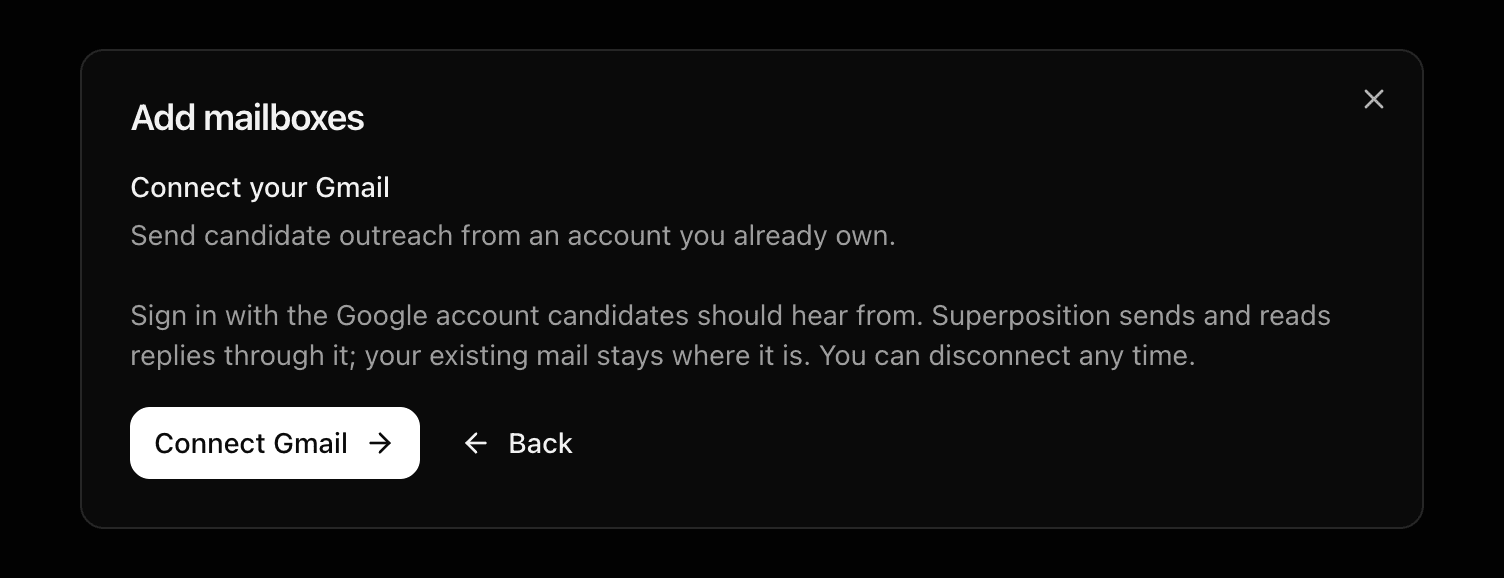
Google asks which account to use and what access to allow. Superposition sends outreach and reads replies through that account; your other mail is untouched. Approve, and you are back on the Mailboxes page with the address in the list marked Verified.
If you cancel, nothing is connected. If your company blocks the sign-in, ask your Google Workspace admin to allow the Superposition app.
Daily limit

Open the mailbox from the list to see its Daily limit, the most emails campaigns may send from it in a day. Admins can change it. Keep it low for a mailbox you also use for normal mail.
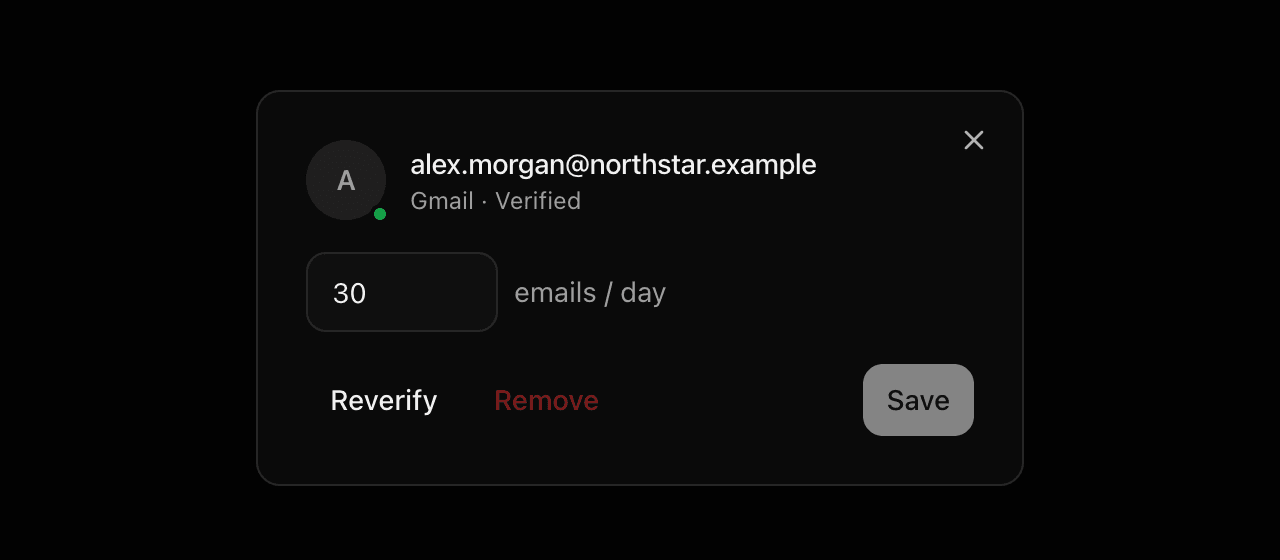
Reverify
Google sometimes removes access, for example after a password change. The mailbox then shows Needs reverify. Open it, select Reverify, and sign in again with the same account. Campaigns resume once it shows Verified.
Disconnect
You can remove a Gmail mailbox from its settings at any time. Campaigns stop sending from it. Conversations already underway keep their history.
Last updated on