Superposition-provisioned mailboxes
Ten recruiting mailboxes on five new domains, bought and set up for you.
We buy five recruiting domains based on your company name, create two mailboxes on each, and connect all ten. You enter one recruiter name and approve the addresses. No DNS, no passwords.
Before you start
- You are an organization admin.
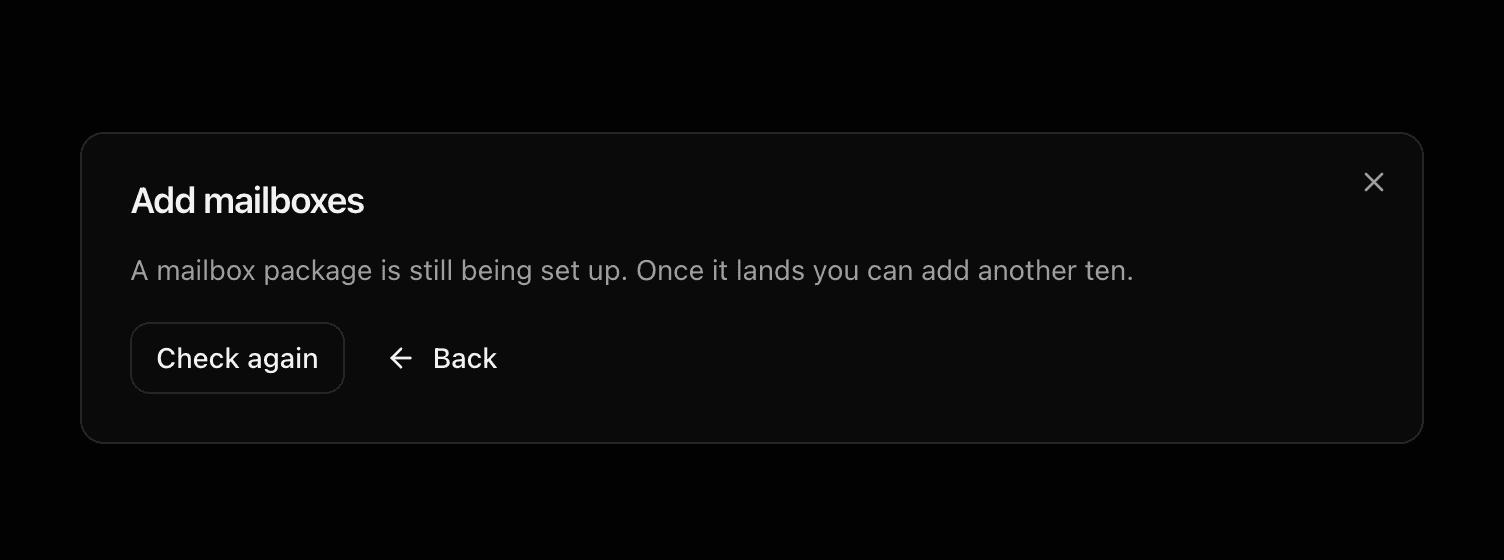
- Your organization has an active Stripe subscription. If not, the dialog shows Open billing. Activate, then select Check again.
- Your company profile has a website. We use it to suggest domain names.
One package at a time. When it is ready, you can add another.
1. Identity
Select Add mailboxes, choose Superposition-provisioned, then Continue.
Enter the recruiter's first and last name, or select Generate a name. Use plain letters in the first name; we use it to suggest mailbox handles.
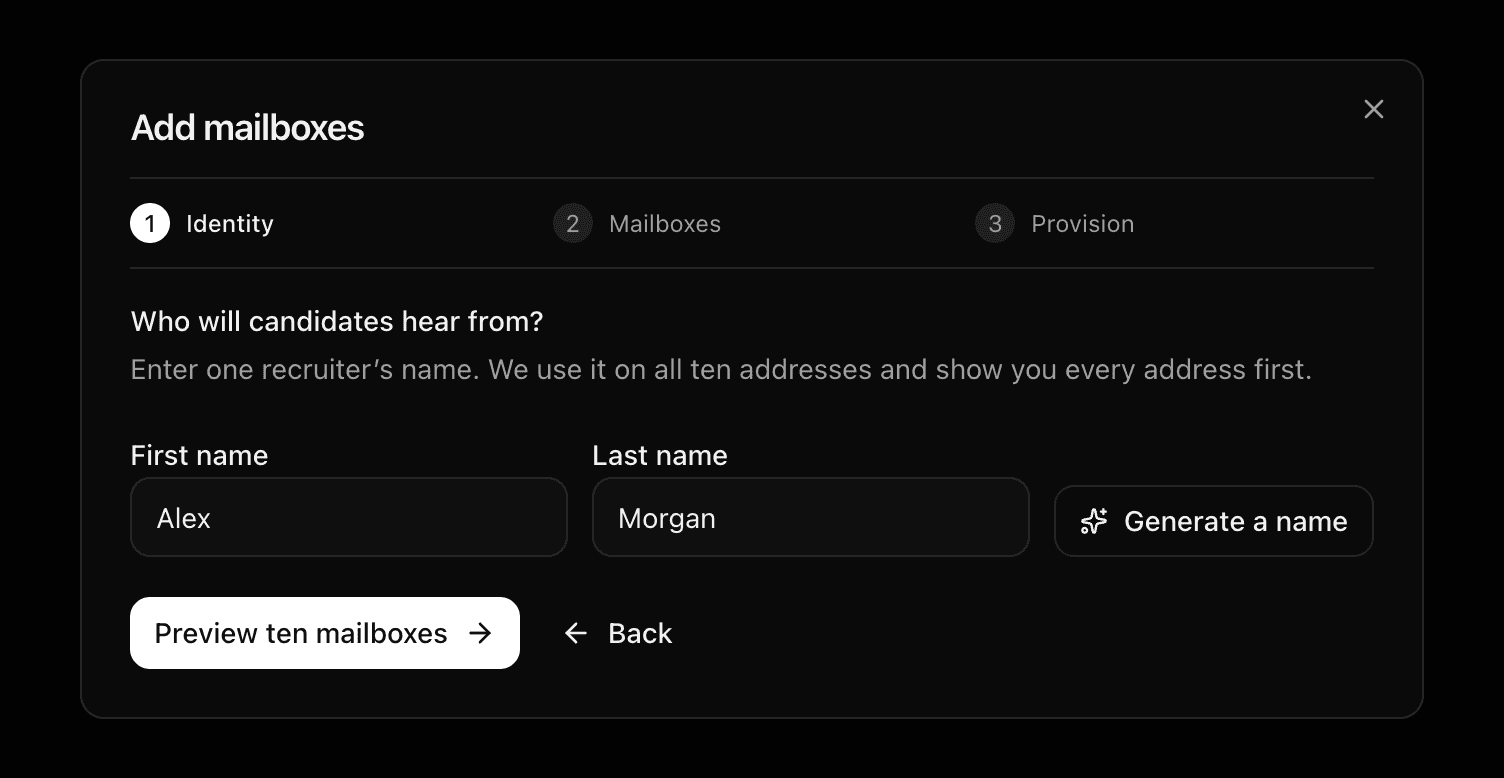
Select Preview ten mailboxes. The review step opens immediately and shows Checking domain availability while we check domains and Google Workspace support with InboxKit and prepare your addresses. Nothing is bought yet.
2. Mailboxes
When the check finishes, the review card shows your recruiter’s name and a summary of
the five domains above the ten addresses, two per domain. Each row has an
editable handle on the left and a fixed domain after @. For example, change alex
to alex.recruiting to use alex.recruiting@northstarcareers.example.
- Edit each handle independently. All ten mailboxes keep the same recruiter display name.
- Use letters, numbers, dots, hyphens or underscores. Leading/trailing spaces are removed and uppercase letters become lowercase when you leave the field.
- The two addresses on each domain must differ. You can reuse a handle on different domains.
- A red message identifies an invalid or duplicate address. Correct it before continuing.
The count stays ten across five domains. You can edit handles only before confirming; this step does not rename mailboxes that have already been provisioned.
If the check fails, select Check availability again, or Edit recruiter to change the name. You cannot create mailboxes until the preview succeeds.
Domains forward to is where a visitor lands if they open one of the new domains in a browser. It defaults to your website. Change it if you prefer a careers page.
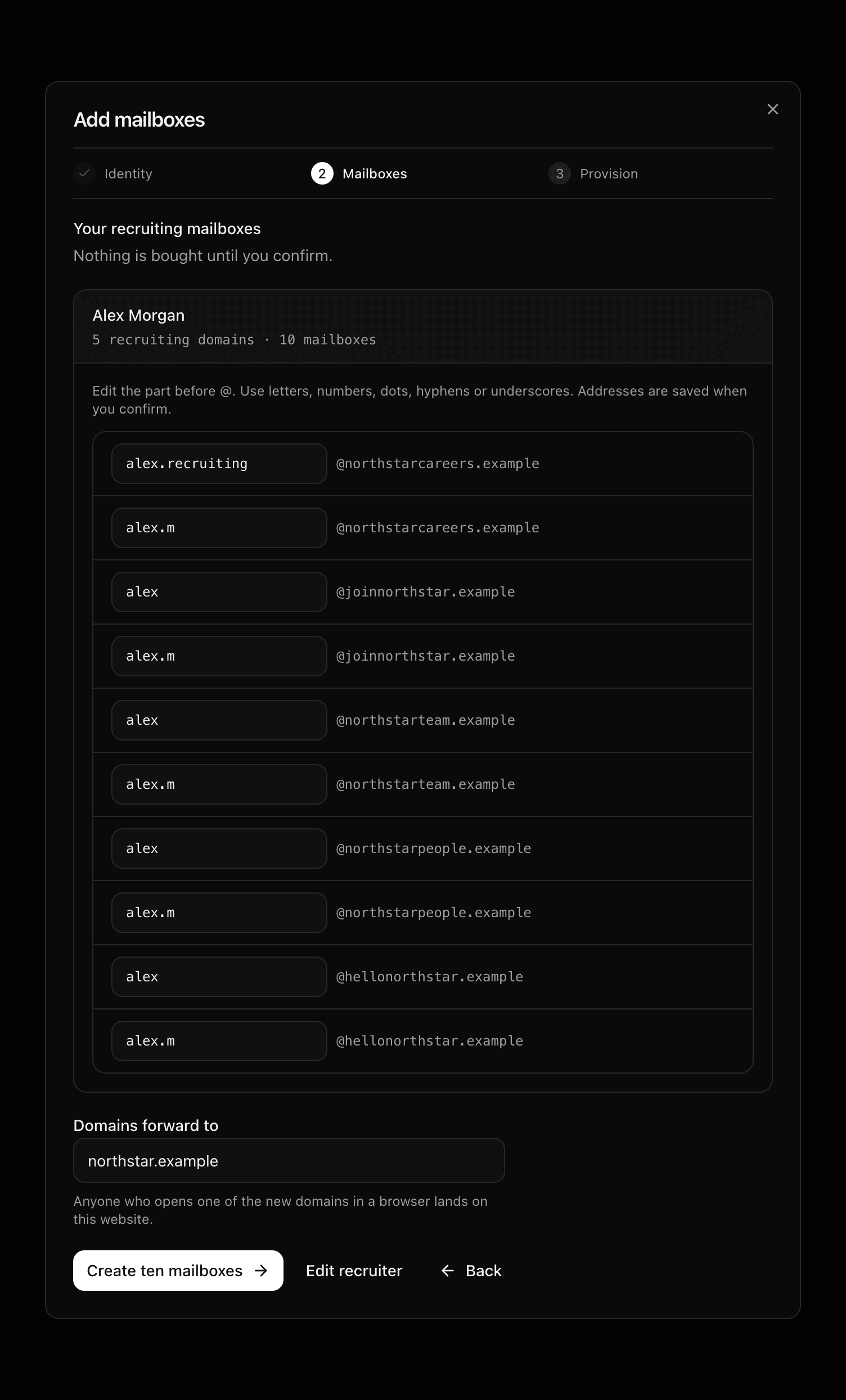
Select Create ten mailboxes to save the reviewed addresses and start setup. Edit recruiter returns to the name step; a new preview replaces your handle edits with fresh suggestions. We check domain availability again when you confirm. If a domain was taken in the meantime, preview again.
3. Provision
The dialog closes and one card per domain appears. Each goes through Registering domains, Creating mailboxes and Connecting mailboxes, then shows Ready.
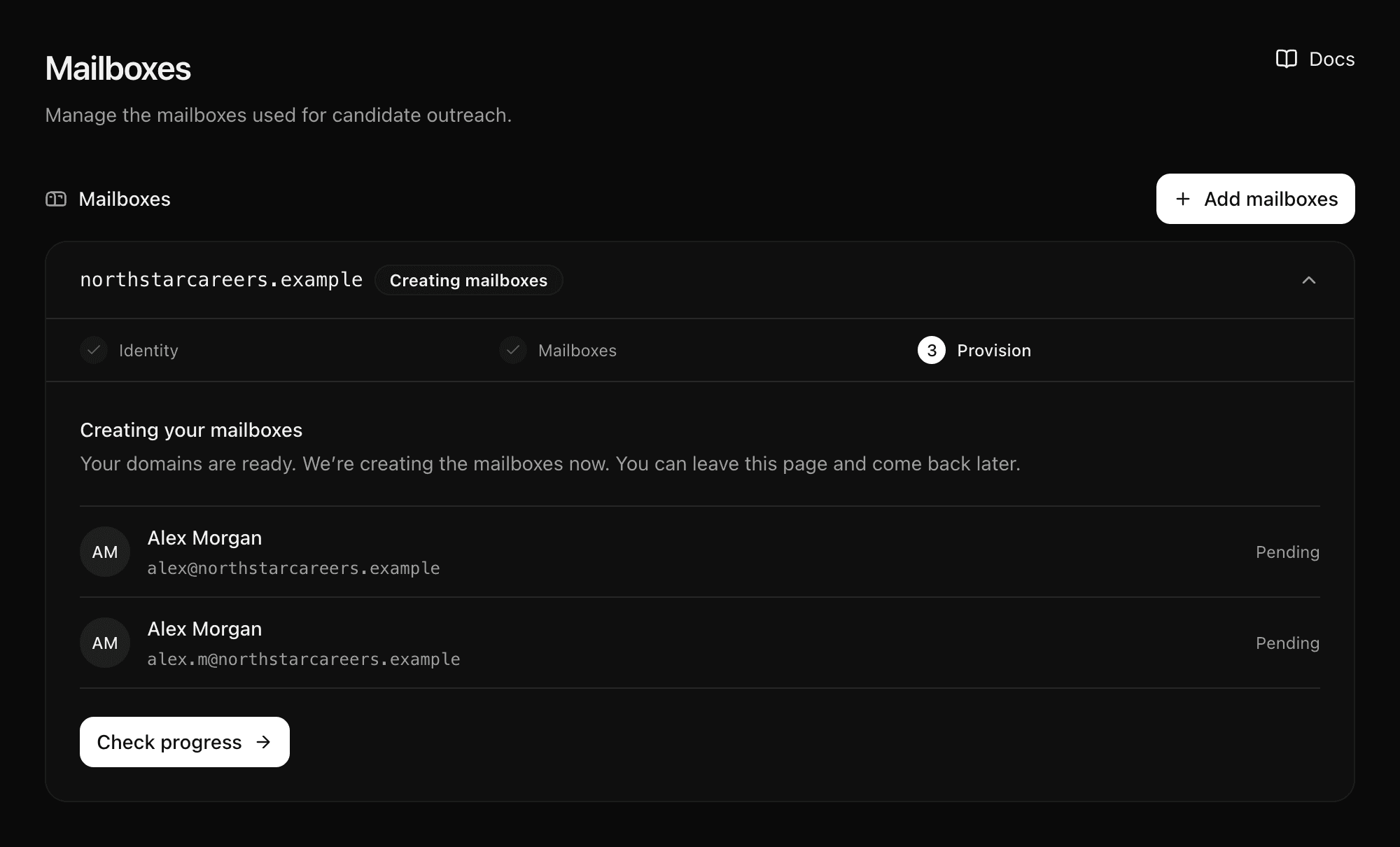
This usually takes up to a day. New domains then warm up on their own before they carry full campaign volume.
Ready
Open a Ready card to see its two mailboxes marked Connected. All ten are also in the mailbox list at the bottom of the page.
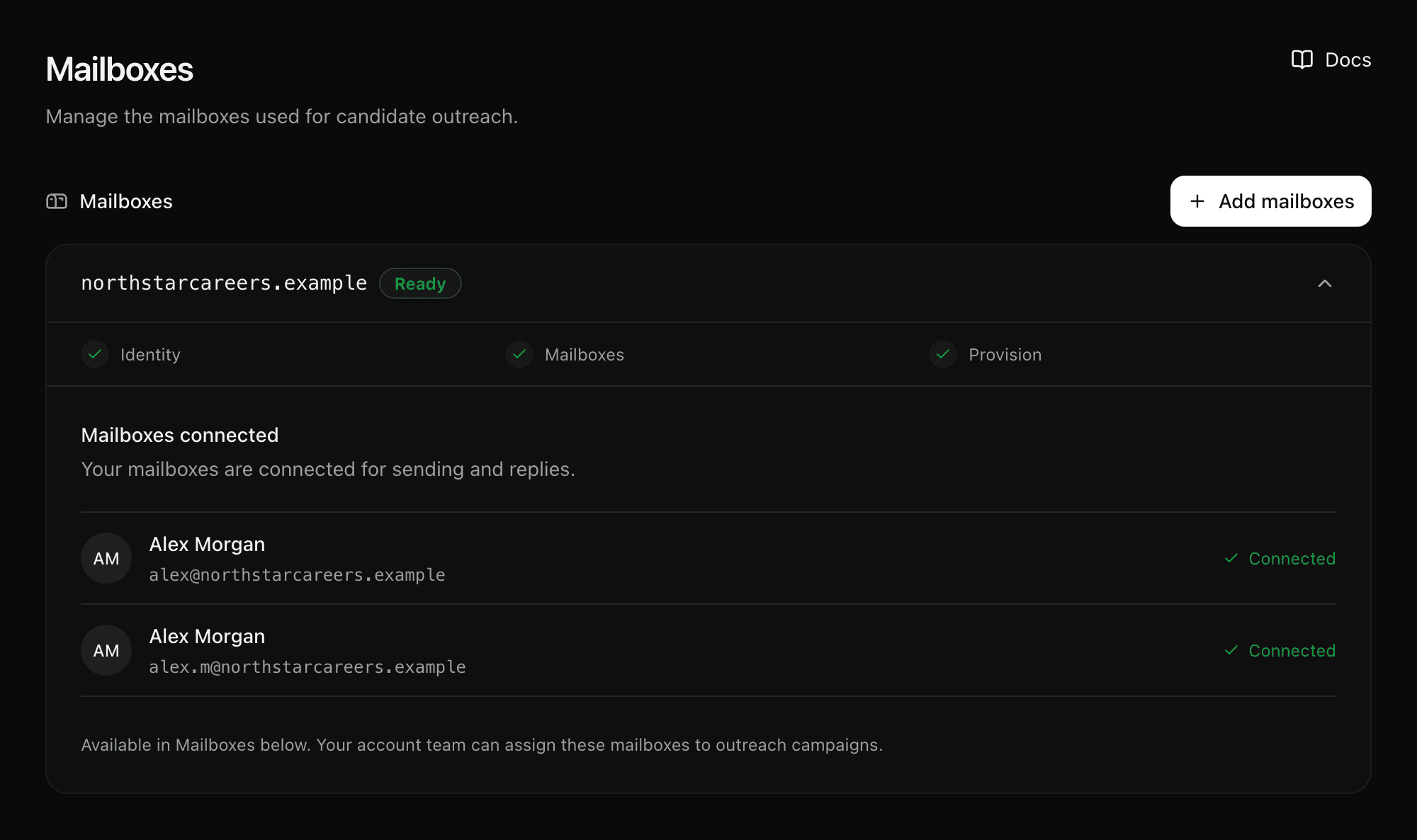
Your account team assigns mailboxes to campaigns. A ready mailbox only sends when a campaign uses it.
If a card says Needs attention
The setup is paused, not lost. Keep the card and use its Email support link; the domain is filled in for you. Setup status explains every state.
Want addresses on your own domain? See Your subdomain.
Last updated on