Book and manage interviews
Choose a scheduling mode, tell the agent how to coordinate, and manage the booking.
Open the role's Scheduling tab and select an interview stage. Choose how candidates should book, then use Agent behavior to explain how the agent should introduce the interview and handle coordination.
Choose a scheduling mode
Each stage has one of four modes. The mode controls how scheduling works; the conferencing choice controls where the call happens.
Built-in link
Use this when candidates should book directly from your team's calendar availability. Connect interviewer calendars, choose Round-robin for one interviewer or Everyone attends for a panel, then set availability and conferencing.
The agent sends the stage's scheduling link and asks the candidate to pick a time. The candidate receives a confirmation with the join link, and interviewers can find the booking in My Interviews → Upcoming.
Choose Superposition Signal under Conferencing to use the built-in interview room and scorecards. See Set up an interview stage for the full setup.
External link
Use this when your team already books through Calendly, Cal.com, or another scheduler. Add that stage's booking URL; the agent shares it with the candidate.
Your external scheduler controls available times, conferencing, confirmations, and booking changes. Check that the URL opens the right interview type and interviewer.
Manual
Use this when a teammate needs to arrange the time personally. Add at least one recipient under CC a human. The agent copies that teammate into the scheduling email and tells the candidate they will follow up with times. No booking link is sent.
Instructions are optional: use them to clarify the handoff or add candidate preparation details. The copied teammate takes over scheduling.
Disabled
Use this when the stage should not send scheduling outreach. The agent does not send a scheduling request for this stage, and its scheduling and agent-instruction controls are hidden.
Give the agent instructions
Instructions apply to this interview stage. Use them for candidate preparation, how to introduce the conversation, and what to do when scheduling needs a person’s help.
- In the stage, scroll to Agent behavior.
- Under Agent instructions, select Edit.
- Write the actions you want the agent to take in plain language.
- Select Done to save.
- Under CC a human, select Edit, add any teammates who should receive the scheduling email, and select Save. A recipient is required for Manual mode and optional for either link mode.
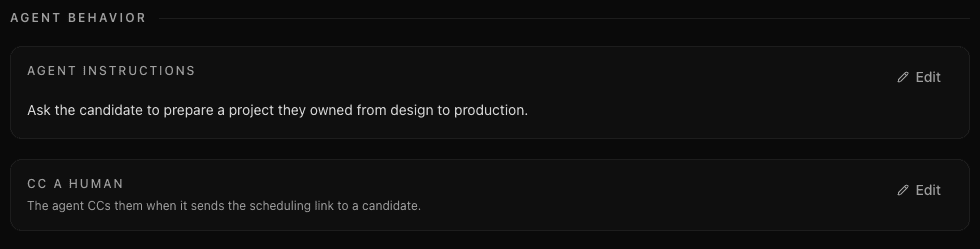
During initial stage setup, you can enter the same guidance in Anything the agent should know? and add CC recipients before continuing.
Examples you can adapt
For a booking link:
Send the scheduling link and ask the candidate to choose a time. Ask them to prepare one project they owned from design to production. If none of the times work, ask for their availability and time zone.
For manual coordination:
Introduce Alex, the teammate copied on the email, as the scheduling contact. Let the candidate know Alex will follow up with times. Ask them to prepare one project they would like to discuss.
Configure Alex's email under CC a human as well as naming them in the instructions. Keep availability, booking URLs, and conferencing in their dedicated settings. Put scorecard assessments in the scorecard.
Clearing the instructions restores the mode's default guidance: share the link for link-based scheduling, or hand coordination to the copied teammate for Manual. To stop scheduling outreach, choose Disabled.
Track and change a booking
For automatic interview tracking, add the assigned interviewers to the stage and connect their calendars. External links and manual coordination still work without connected calendars, but Superposition only watches the calendars of assigned, connected interviewers.
For built-in bookings, candidates can reschedule or cancel through their confirmation. External bookings use the scheduler's change process; manually arranged interviews are changed with the coordinating teammate.
Use Disable link to stop new bookings through any built-in link, regardless of the conferencing provider. Existing interviews remain scheduled. If a link has no available times, check calendars, stage availability, and whether the whole panel has an overlapping free time.
Last updated on