Prepare and join
Check your devices and review the candidate before entering the room.
Sign in to Superposition and open My Interviews → Upcoming. Find the candidate and select Join. You can also use the interview's calendar invitation.
Check your camera and audio
The pre-join screen shows your camera preview on the left. Use the microphone and camera buttons to turn each device on or off. Choose the camera, microphone, and speaker you want from the selectors below the preview.
Your account name is filled in. Select Edit if you want to change the name displayed during this call.
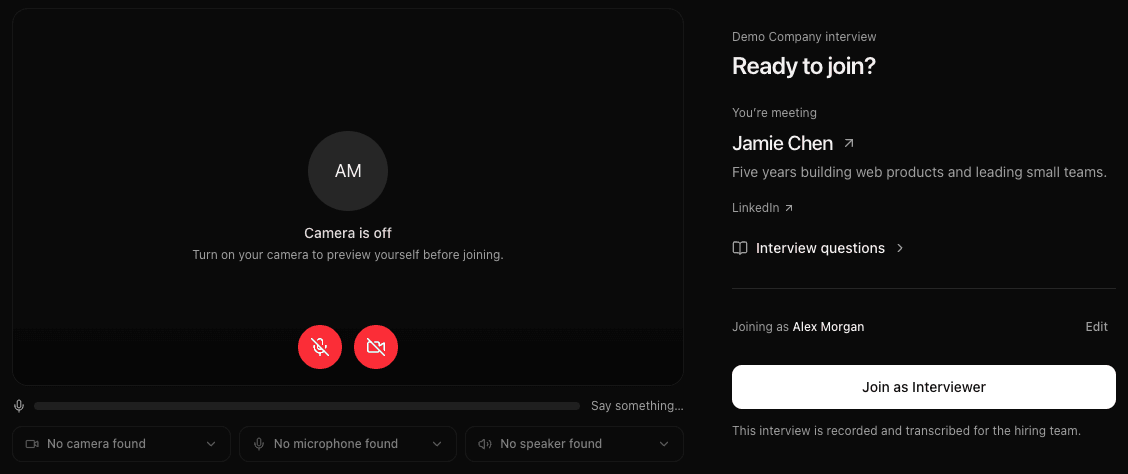
If the preview cannot find a device, follow Joining and device help.
Review who you're meeting
Select the candidate's name to open their profile and timeline beside the page. The LinkedIn link opens their LinkedIn profile when one is available.
Open Interview questions to review the prepared prompts. Each question has optional What to assess guidance, so you can focus on the question first and read more when needed.
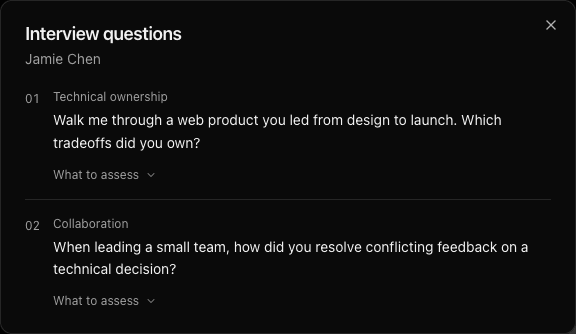
Enter the room
Select Join as Interviewer when you're ready. The notice below the button explains that the interview is recorded and transcribed for the hiring team.
If you're first to arrive, stay in the room; the call connects when the other participant joins. If the stage uses a waiting room, admit the candidate when you're ready to begin.
Keep the interview scorecard open during the conversation, or adjust your room controls.
Last updated on