Meeting Assistant
BetaBook, host, record, and debrief interviews in Superposition Signal, all from one place.
The Meeting Assistant runs your whole interview loop in one place. Candidates book from a link that carries your company name and logo. Everyone joins Superposition Signal, our native interview room. The moment both parties are in the room the call is recorded and transcribed. When it ends, the recording, transcript, in-room chat, and a trait-by-trait summary land on the candidate's record, and your team gets a shared debrief to decide next steps with the agent.
Beta
Superposition Signal is in beta. Its pricing and functionality may change as we continue to build it out.
This guide walks the setup in the order you actually do it. Everything lives on a role's Scheduling tab, alongside your normal interview scheduling.
The end-to-end flow
- You pick Superposition Signal as the conferencing option on an interview stage and add one or more interviewers.
- Superposition mints one reusable booking link for that stage.
- A candidate opens the link, picks a time, and gets a confirmation email with their join link.
- At the scheduled time, everyone joins the Signal room. Recording and live transcription start on their own.
- When the last person leaves, Superposition attaches the recording, transcript, chat, and a trait summary to the candidate, posts the summary to your Slack thread, and opens a shared debrief on the candidate's page.
Signal is the recommended option because it is the only one that produces artifacts. Google Meet and Zoom still work per stage, but interviews on those tools run outside Superposition, so there is no recording, transcript, or summary.
Set up scheduling for a stage
Open the role, go to the interview stage, and open its Scheduling tab:
https://app.superposition.ai/orgs/<your-org>/jobs/<role>/schedulingAssign your interviewers
Add one or more people to the stage's interviewer pool. Search by name or email. When more than one person is in the pool, Superposition round-robins bookings across the team based on who is free, so no one has to hand off calendars.
Each interviewer needs a connected calendar to be bookable. The card shows readiness as "3 of 4 bookable" and flags anyone who has not connected a calendar yet. Unconnected members are skipped in the rotation until they connect.
Choose conferencing
Under Conferencing, pick where the interview happens:
| Option | What it does |
|---|---|
| Superposition Signal (Recommended) | Native room on our domain. Recording, live transcript, and an automatic trait summary. |
| Google Meet | A Meet link is generated per interview. No Superposition artifacts. |
| Zoom | A Zoom link is generated per interview. No Superposition artifacts. |
| Microsoft Teams | A Teams link is generated per interview. No Superposition artifacts. |
New stages default to Signal. Switching an existing stage to Signal changes nothing about already-booked interviews, they keep their original link.
Set duration and availability
Set the interview length (the default is 30 minutes) and your weekly availability windows. Availability is read from the connected calendars in the pool, so a slot is only offered when the rotating interviewer is actually free.
Buffers between interviews and the minimum notice before a slot can be booked come from your scheduler configuration. You do not need to set them per candidate.
That is the whole setup. Superposition creates one booking link for the stage and hosts the room. There is nothing for the candidate to install.
One reusable link per stage
The stage has a single booking link, not one link per candidate. A candidate maps to their record by the email they enter when booking. If the email matches a candidate on the role, the booking attaches to them. If it does not match, the booking is still accepted and held for your team to reconcile, and the candidate sees no difference.
This means you can share the same link with everyone at that stage. No per-candidate link juggling.
What we recommend, and why
Use Superposition Signal. It is the only option that gives you a durable record of the interview, and it removes the usual scheduling friction:
- Your brand, our domain. The booking page shows your company name and logo, with no third-party scheduler branding.
- A fresh room per booking. Every interview gets its own private room, so back-to-back interviews never collide in the same link.
- Recording, transcript, and summary, automatically. No record button to remember and no note-taking bot to invite. It starts once both people are in the room.
- A kill switch you control. You can disable a stage's booking link at any time without tearing down the setup.
What the candidate sees
The candidate opens the booking link and lands on a page carrying your company name and logo. There is no account to create and no email verification step.
- Event summary rail. Your company, the role and stage, the interview length, "Superposition Signal" as the location, and a timezone picker with a 12h / 24h toggle.
- Calendar and time list. A month calendar with open days highlighted, and the times for the selected day beside it. On a phone this becomes a two-step flow: pick a day, then pick a time, with a Back control to change the day.
- Confirm. The candidate picks a slot, enters their name and email, and books. They get a confirmation email with a single join link, plus the recording disclosure so consent is on record before the interview. Reschedule and cancel links are in that email.
The kind of questions candidates get
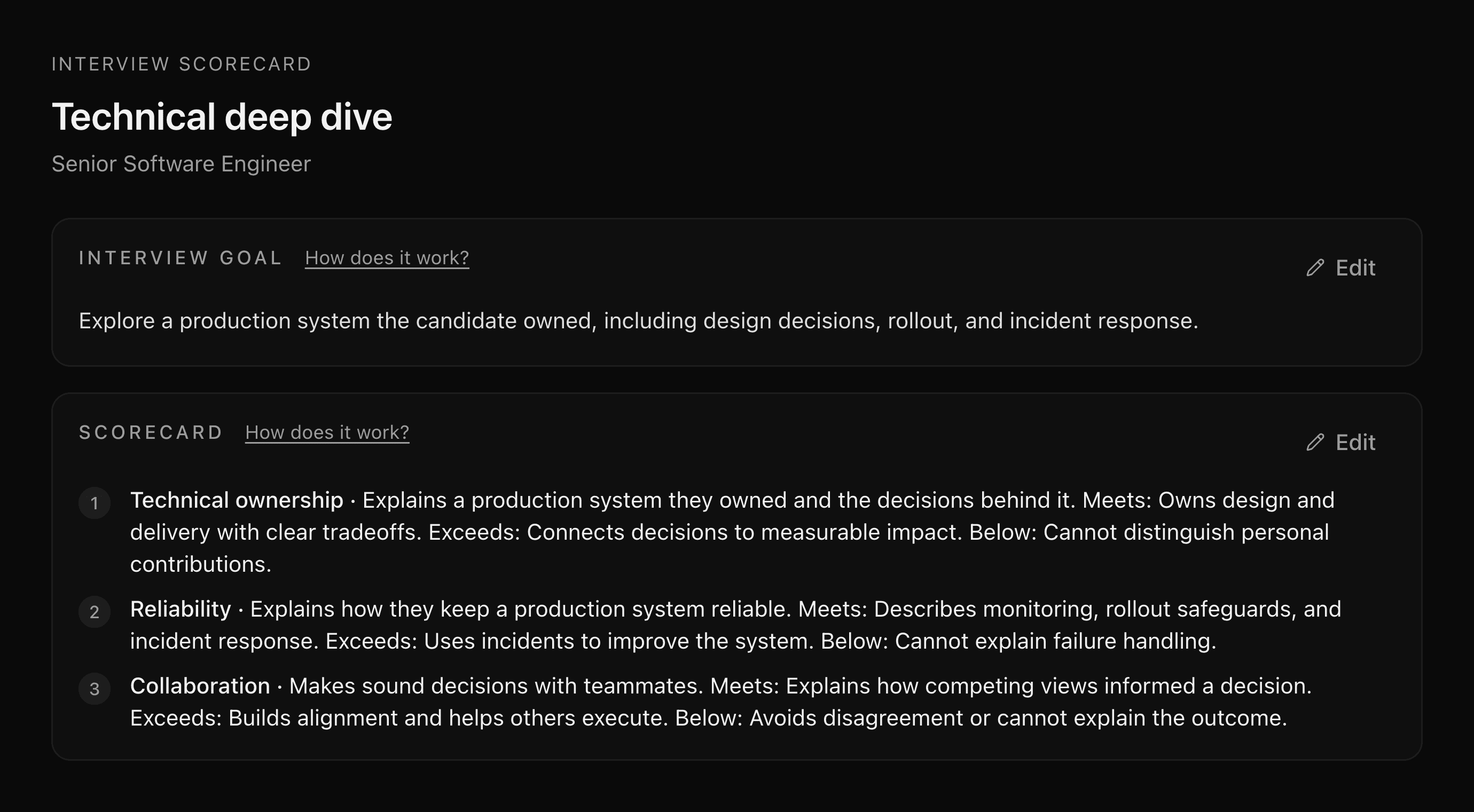
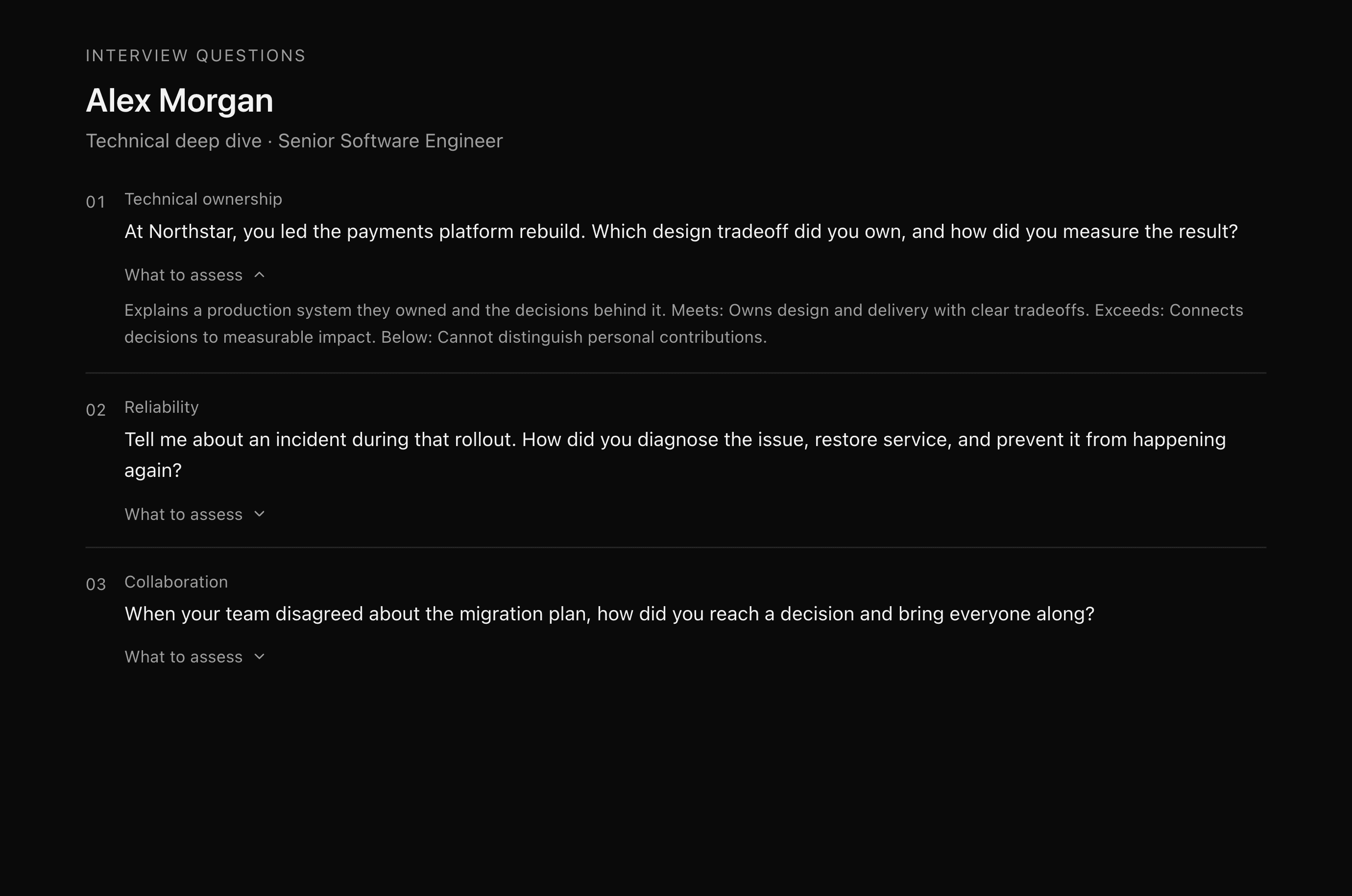
The interviewer works from an interview guide tuned to the traits this role screens for. The guide is a short checklist of topics and questions. The candidate never sees it, but it is worth knowing what it probes so candidates come prepared to talk about real work, not rehearsed answers.
A guide for a role that values high agency, scrappiness, and self-directed learning might ask:
- High agency: "Tell me about a time you saw something broken that was not your job to fix. What did you do?"
- Scrappiness: "Describe a time you shipped something with almost no budget, no headcount, or no clear go-ahead. How did you get it done?"
- Autodidactic learning: "What is something technical you taught yourself in the last year, with no course and no mentor? Walk me through how you learned it."
- Ownership: "Give an example of a goal you set for yourself that nobody asked you to hit. What happened?"
The guide sharpens itself from every interview on the stage, so the questions get more specific to the role over time. See After the interview for how to edit it.
The interview in Superposition Signal
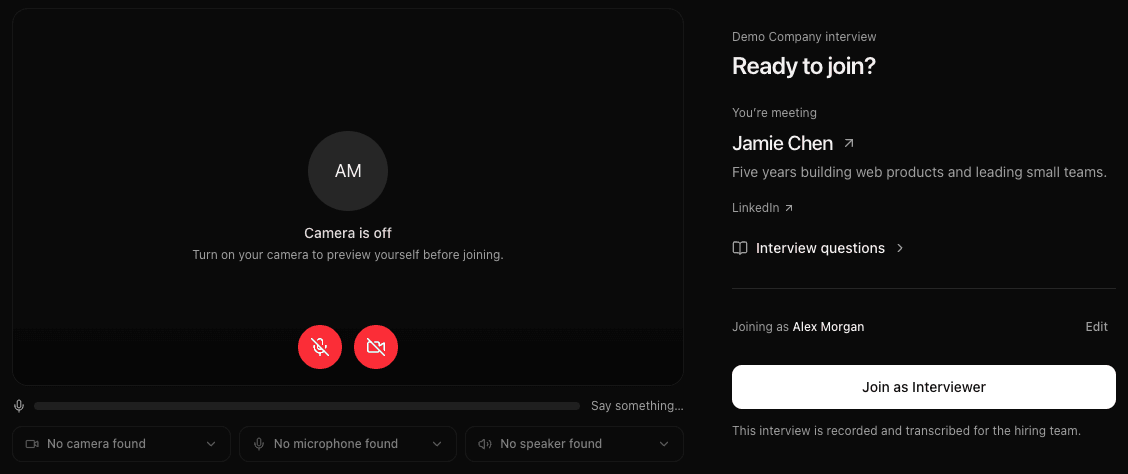
Interviewers join from the calendar invite or from the candidate's record in the dashboard. Candidates join from the link in their confirmation email. Before the room there is a short pre-join screen:
Check camera and mic
Pick your camera, microphone, and speaker, and confirm the name you want shown. There is a live preview so you can see yourself before joining. There is no waiting room.
Interviewers approve recording terms
Interviewers approve the recording terms once. You cannot join until you do, which is how consent is captured. Candidates do not approve anything in the room, their disclosure was in the confirmation email and is shown again as a short pre-join notice.
Interviewers see the candidate brief
Interviewers get a roughly ten-second read on who they are about to meet: name, current role, and the pre-interview fit signal. Candidates never see this.
Once both a candidate and an interviewer are in the room, recording and transcription start on their own.
Recording covers the whole interview and starts only when both parties are present. Two interviewers prepping before the candidate arrives are not recorded.
Inside the room you have video, screen share (interviewers), in-room chat, and live captions that each person can toggle on or off for themselves. Interviewers also see the interview guide panel, the checklist of what to cover for this stage.
When you leave, interviewers on your team land straight in the shared debrief on the candidate's page. Candidates and outside interviewers see a short branded thank-you.
After the interview
When the last person leaves, Superposition processes the interview and, within a few minutes, attaches everything to the candidate's timeline.
The automatic summary
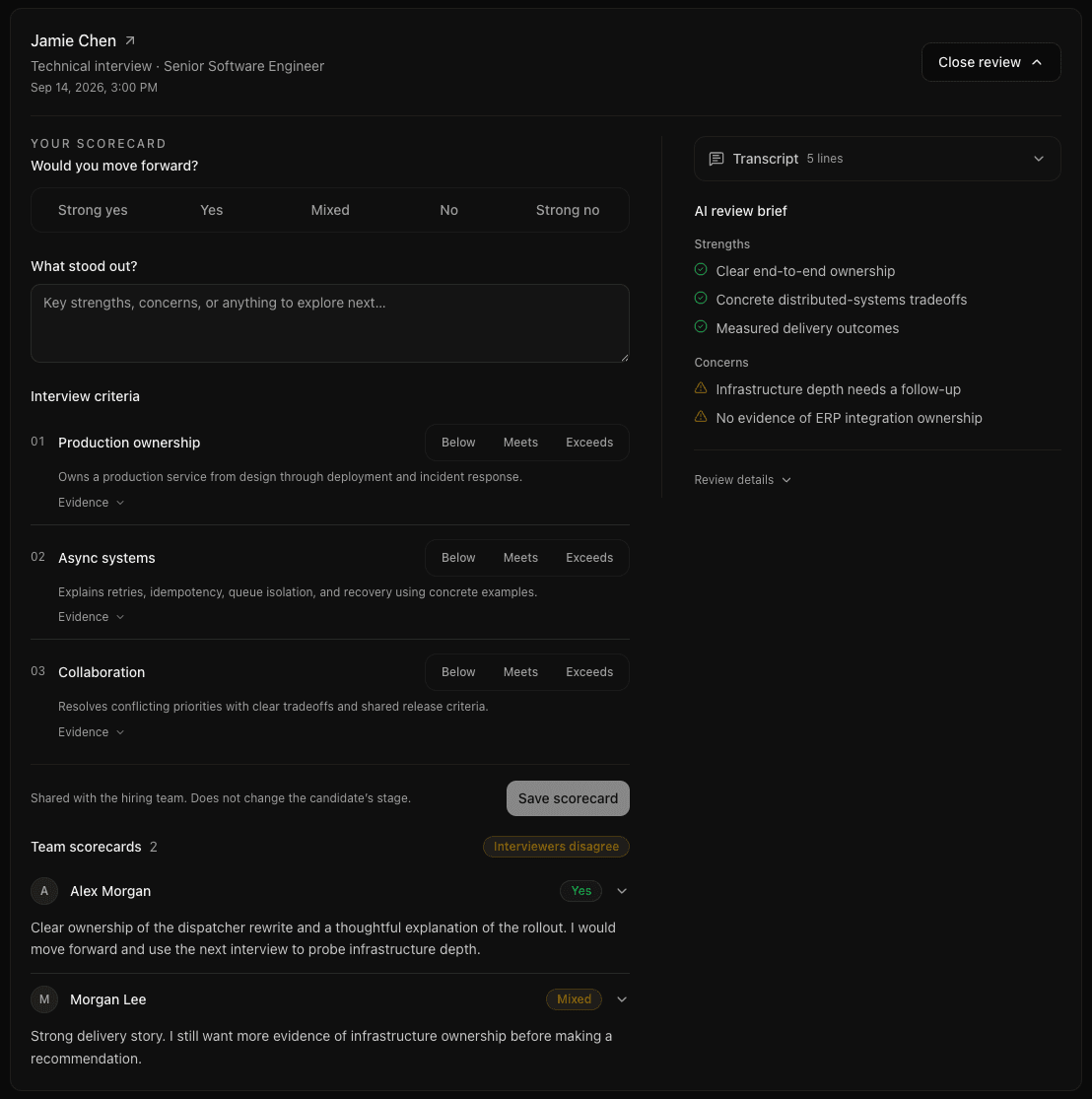
The summary reads each company-defined trait against evidence from the transcript, with strengths and concerns and quotes you can click to jump to that moment in the recording. It never makes a hire or reject call for you. It gives everyone the same evidence to reason from.
The summary is saved to the candidate record and timeline and posted to the candidate's Slack thread automatically.
The shared debrief
Opening the candidate record drops your team into a shared debrief, one conversation per interview. The agent presents the summary and evidence and helps you decide next steps. Messages are attributed to whoever wrote them and appear for everyone in near real time. When the agent proposes a status change, it runs only after someone on the team confirms, and the update mirrors to Slack.
Updating the questions
The interview guide is editable from the stage's Scheduling tab. On the guide card you can:
- Edit the intent, a short description of what this interview evaluates.
- Edit the questions, one per line as
topic: question.
Each question is labeled by where it came from, either Client (something you wrote) or Inferred (something the guide learned from a past interview's transcript). The agent can also update the guide for you when you ask it to.
Superposition keeps the guide's history as it learns. Each version is labeled by its source (a first draft, a client edit, an agent edit, or reinforcement from a completed interview) and linked to the interview it came from, so you can see how the questions evolved for this stage.
Manage a booking link
To take a stage's booking link offline, open the stage's Scheduling tab and use Disable link on the booking-link card. The public booking page goes dark right away and no new interviews can be booked. Interviews already booked keep their scheduled time and are not affected. Your stage setup stays intact.
Use Enable link to bring it back. Re-enabling is instant and needs no confirmation.
Availability
The Meeting Assistant is rolling out to organizations gradually. If Superposition Signal is not an option on a stage yet, your organization has not been enabled. Ask your Superposition contact to turn it on, or keep using Google Meet, Zoom, or an external scheduler in the meantime.
Last updated on