Manage room controls
Adjust your audio, camera, background, and call layout.
The toolbar at the bottom of the Signal room holds the controls you use during the call. The microphone and camera buttons turn those devices on or off; the small arrows beside them open settings above the toolbar.
Choose devices and background blur
Open the microphone settings to choose your microphone and speaker. Open the camera settings to switch cameras or change background blur.
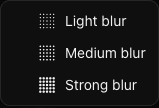
The blur menu offers Light blur, Medium blur, and Strong blur. After you select one, the control shows its icon and level.
If a device is missing, check device permissions and selection.
Use the call tools
| Control | Use it to |
|---|---|
| Chat · speech bubble | Send a message in the call. |
| Screen share | Present a screen or window when the control is available to you. |
| Captions | Follow the conversation with on-screen captions. |
| Reactions | Respond without interrupting the speaker. |
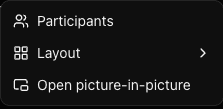
| More options · three dots | Open participants, change layout, or use picture-in-picture. |
Use Copy join link at the top right to copy the candidate’s join link.
For prepared questions and your editable scorecard, use Interview scorecard at the top left. Switch to Scorecard to add ratings and evidence during the call. These stay on the interviewer side.
Leave or return to the call
Select the red phone button to leave. Interviewers with dashboard access continue to the feedback page, where Rejoin interview returns to the room.
When the conversation is finished, save your scorecard. You can write it before the interview recap is ready.
Last updated on